Default Decals
Decals are entered into the system every time a new order of decals is received from DMV (see Decal Inventory). The system will allow you to assign a batch of decals to a specific teller. Then when processing a registration, the decals will auto-populate with the next available decal for that teller. This can save time and input errors, however, the clerk should always verify the decal that auto-populated is the decal they are issuing to this vehicle. NOTE: The Clerk should obtain permission from DMV before allowing this functionality.
In order to use this function, you must turn on the Default Decals function. Go to Utilities | System Administration | System Options. Select the Motor Vehicle Settings tab, click the Default Decals checkbox, and click Save. Once the option has been enabled, you must assign a batch of decals to each teller.
To assign a batch of decals to a teller, go to Utilities | System Administration | Decal Inventory and select Assignment.
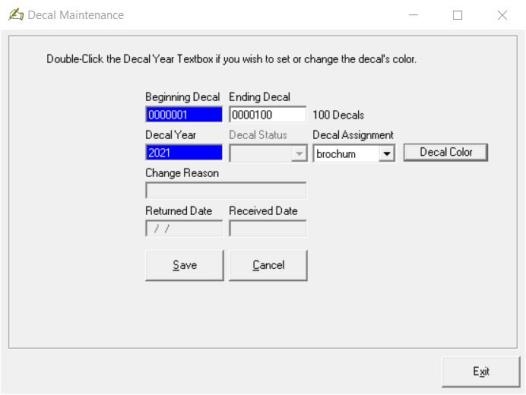
Use the text boxes to enter the first and last decal in your packet and the year of the decals. The Decal Assignment dropdown box allows you to select the teller you want to assign the decals to. After you have completed your entries, click Save.